
How to OCR a scanned PDF and turn it into a searchable document
A scanned PDF can look like a normal document, but to a computer it may be only a picture of a page. Local OCR lets you add searchable text without uploading business documents to random online tools.
Before you read
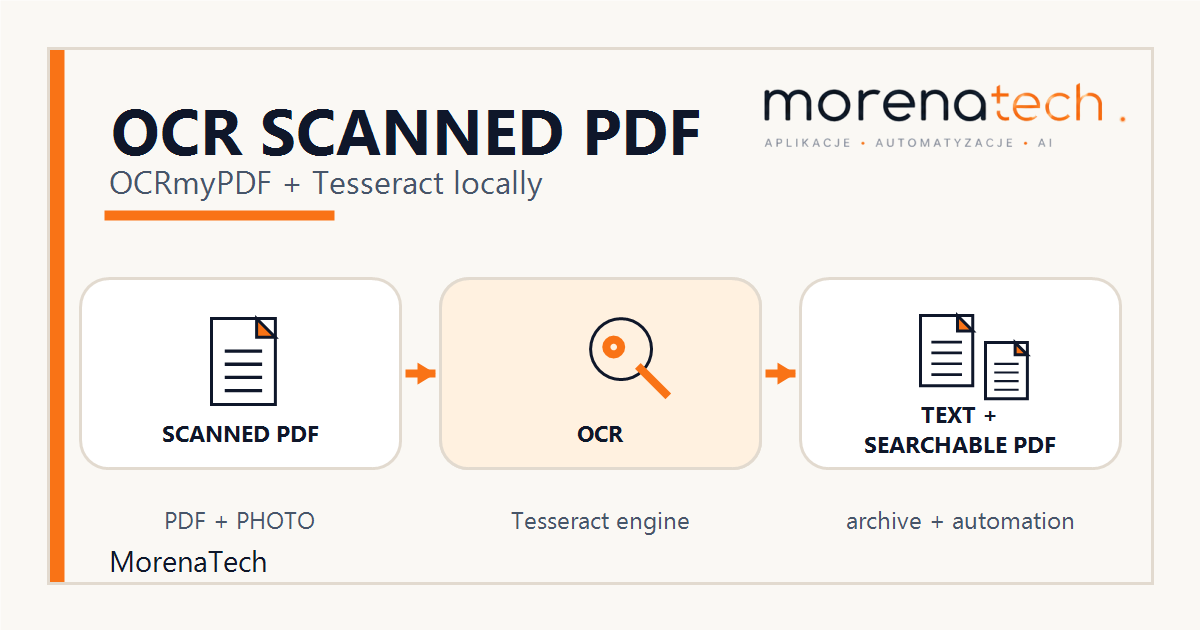
What are we going to do?
We will take this file:
scan.pdfand create:
scan_ocr.pdfThis new PDF should look almost the same as the original, but it will include a text layer. That means you can search inside it, copy fragments and use the text in further work.
In the second variant, we will also create a separate text file:
text.txtThis is useful when you want to paste the document content into notes, summaries, a knowledge base or an automation process.
When is this useful?
OCR is useful when documents arrive as scans or photos:
- invoices
- contracts
- official letters
- protocols
- documents from clients
- old document archives
- PDFs without a text layer
Example: you have a folder with contracts, but you cannot find a tax number, client name or amount. Without OCR, you have to open files manually and read them one by one. With OCR, you can search.
What is OCR?
OCR means Optical Character Recognition.
The software analyzes an image of a page and tries to recognize letters, numbers and the text layout. The result is not always perfect, because quality depends on the input scan. A crooked photo taken in poor light will produce worse results than a clean scan.
OCR is not magic. It is more like a very patient assistant that rewrites documents quickly, but still needs human review for names, numbers and important details.
What tools will we use?
We will use two tools:
OCRmyPDF
A tool for adding OCR to PDF files. It takes an input PDF and creates a new PDF with a text layer.
Tesseract
The OCR engine that actually recognizes text. OCRmyPDF can use Tesseract underneath.
In practice, OCRmyPDF handles the PDF file, pages, rotation, deskewing and output. Tesseract recognizes the text.
Technical sources
For command details and options, keep the official OCRmyPDF installation guide, OCRmyPDF language package documentation and Tesseract command-line documentation nearby.
Installation
Linux / Ubuntu
sudo apt update
sudo apt install ocrmypdf tesseract-ocr-pol tesseract-ocr-eng
Check the installation:
ocrmypdf --version
tesseract --list-langs
You should see at least:
pol
eng
If pol is missing, the Polish language package is not installed.
macOS
On macOS, the easiest option is Homebrew:
brew install ocrmypdf
brew install tesseract-lang
Windows
On Windows, there are two main options.
The first option is native installation. It requires Python, Tesseract and Ghostscript.
The second option is WSL, which runs Linux inside Windows. For many users, WSL is cleaner than fighting with system paths.
In WSL with Ubuntu, use the Linux commands:
sudo apt update
sudo apt install ocrmypdf tesseract-ocr-pol tesseract-ocr-eng
For native Windows, after installing Python, Tesseract and Ghostscript, install OCRmyPDF with:
py -m pip install ocrmypdfCheck it with:
py -m ocrmypdf --versionFirst OCR: scanned PDF to searchable PDF
Assume you have a file:
scan.pdfThe simplest command is:
ocrmypdf -l pol+eng scan.pdf scan_ocr.pdfWhat does it mean?
-l pol+eng tells OCR that the document may contain Polish and English text.
scan.pdf is the input file.
scan_ocr.pdf is the output file.
After running the command, open scan_ocr.pdf and try Ctrl+F. Search for a company name, invoice number or a visible phrase from the page.
If search works, the document now has a text layer.
Better version: rotate and deskew pages
Scans are often slightly crooked, and some pages may be rotated. Add two options:
ocrmypdf -l pol+eng --deskew --rotate-pages scan.pdf scan_ocr.pdf--deskew tries to straighten pages scanned at a slight angle.
--rotate-pages tries to rotate pages with the wrong orientation.
This is a good starting command for most normal scans.
Always check the visual result after processing. Automatic image correction is useful, but should not be trusted blindly, especially with stamps, tables, signatures or low-quality scans.
PDF plus a separate text file
Sometimes you do not only want a searchable PDF. You also want plain text for further work.
Use --sidecar:
ocrmypdf -l pol+eng --deskew --rotate-pages --sidecar text.txt scan.pdf scan_ocr.pdfYou will get two files:
scan_ocr.pdf
text.txt
The PDF is good for the archive. The text.txt file can be used for notes, summaries, a knowledge base or document automation.
This is the point where OCR stops being only a scanning utility and becomes the first step in an automation process.
OCR for a single photo
If you have a photo of a document, for example:
document.jpgyou can use Tesseract directly.
To create a searchable PDF:
tesseract document.jpg result -l pol+eng pdfThis creates:
result.pdfTo create text only:
tesseract document.jpg result -l pol+engThis creates:
result.txtFor photos, input quality matters a lot. The document should be well lit, straight, sharp, without shadows and preferably high resolution.
How to check the result
After OCR, do not stop at the file being created. Check three things.
First, open the output PDF and use search. Try to find a company name, document number or a few words from the content.
Second, select a piece of text and copy it. If pasting gives you normal text, OCR works.
Third, manually check important data: amounts, dates, tax numbers, invoice numbers, names and addresses. OCR may confuse 0 with O, 1 with l, or miss local characters.
Common problems
Missing Polish language
If -l pol+eng returns an error, the Polish language package is probably missing.
Check available languages:
tesseract --list-langsIf you do not see pol, install the Polish OCR language package.
Poor OCR quality
Common causes:
- crooked scan
- low resolution
- shadows
- blurry image
- wrong OCR language
- small font
- tables or unusual layout
Try again with a better scan or use:
ocrmypdf -l pol+eng --deskew --rotate-pages scan.pdf scan_ocr.pdfThe PDF already has a text layer
Sometimes the PDF already contains text, but the OCR is old or incorrect. In that case, you may consider redoing OCR:
ocrmypdf --redo-ocr -l pol+eng scan.pdf scan_ocr.pdfDo not run this on the whole archive without testing one file first.
Digitally signed documents
Do not modify digitally signed PDFs if the signature matters formally. Changing the PDF may invalidate the signature or make the document stop being treated as the original signed file.
For such files, create a working copy for search and keep the original unchanged.
What about online OCR?
There are many online services that let you upload a PDF and download text. For private, unimportant documents, that may be enough.
But be careful with business documents.
Do not upload these to random online OCR tools:
- contracts
- client data
- invoices
- HR documents
- medical documents
- legal letters
- ID scans
- documents with bank account numbers or identifiers
Local OCR keeps the file on your computer or inside your company environment.
What can you do with OCR text?
OCR is only the beginning.
Once a document has a text layer or a separate text.txt file, you can:
- search documents by content
- create short summaries
- extract invoice numbers
- build a knowledge base
- prepare a company archive
- automatically describe files
- pass data to a spreadsheet or CRM
- generate notes from documents
A simple process for a small business may look like this:
document scan
→ OCR
→ PDF with text
→ text file
→ important data review
→ organized archive
If this should become part of a broader workflow, see automation for business, Google Workspace and Apps Script and AI for business.
Summary
If a PDF does not allow text search, it is probably just a scan saved as a document.
With OCRmyPDF and Tesseract, you can locally create:
- a searchable PDF
- a separate text file
- material for further automation
The most useful starting command:
ocrmypdf -l pol+eng --deskew --rotate-pages scan.pdf scan_ocr.pdfVariant with a text file:
ocrmypdf -l pol+eng --deskew --rotate-pages --sidecar text.txt scan.pdf scan_ocr.pdfNeed this process in your company?
Do you have scans, contracts, invoices or documents that cannot be searched?
MorenaTech can help prepare a simple process:
scan → OCR → text → organized archive → further automationIt can work locally, in Google Workspace, in spreadsheets, in a simple panel or as part of a larger document workflow.
If you want to organize documents and recover text from them, contact MorenaTech.
Want searchable documents and a cleaner archive?
MorenaTech helps small businesses build practical document workflows: OCR, text extraction, Google Workspace processes, organized archives, summaries, and controlled automation.
Semantically related materials